
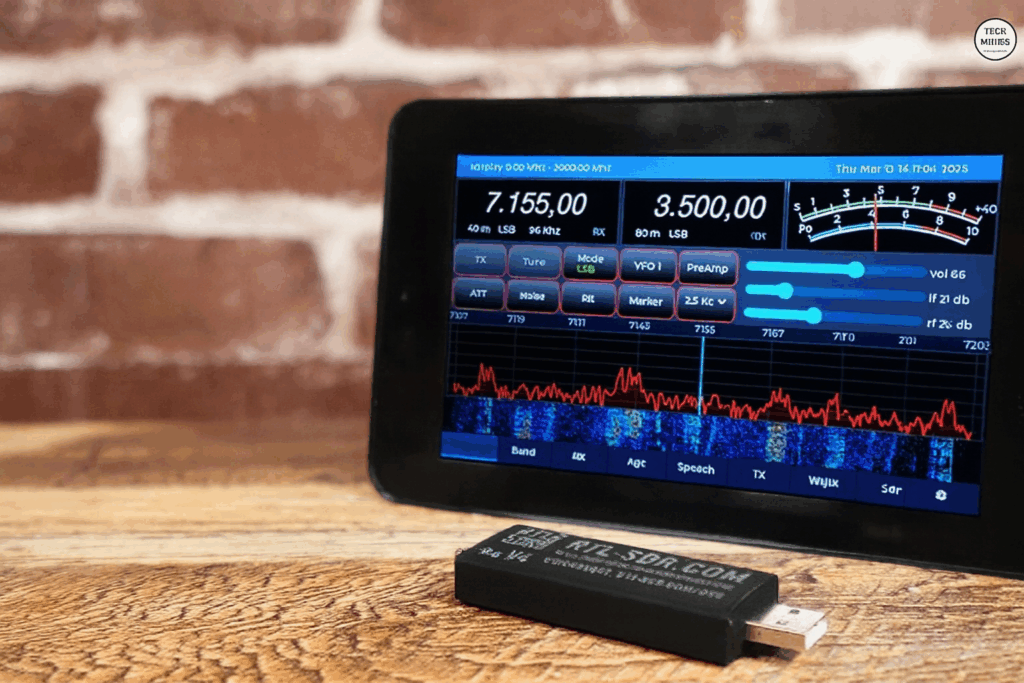
📡 SDRBerry: turn your Raspberry Pi into a complete SDR station
SDRBerry is an open-source project that turns a Raspberry Pi into a professional SDR station (Software Defined Radio) with a graphical touch interface. Compatible with many receive-only SDRs (RTL-SDR, SDRPlay) and transceivers (Adalm Pluto, RadioBerry, HackRF), it offers advanced features such as noise reduction, FT8 support and remote control. This complete SDRBerry installation guide explains step by step how to install and configure SDRBerry on a Raspberry Pi 4 or 5 to build your own amateur radio SDR station.
📑 Contents
🎯 What is SDRBerry?
SDRBerry is a project created by Paul Hoijer (PA0PHH) that turns a Raspberry Pi into a complete SDR transceiver with a modern graphical interface based on LVGL v8. It is an ideal solution for radio amateurs who want to build their own portable, affordable SDR station.
🎬 SDRBerry in action: video demonstration
See SDRBerry in a superb case with a VFO knob and touchscreen:
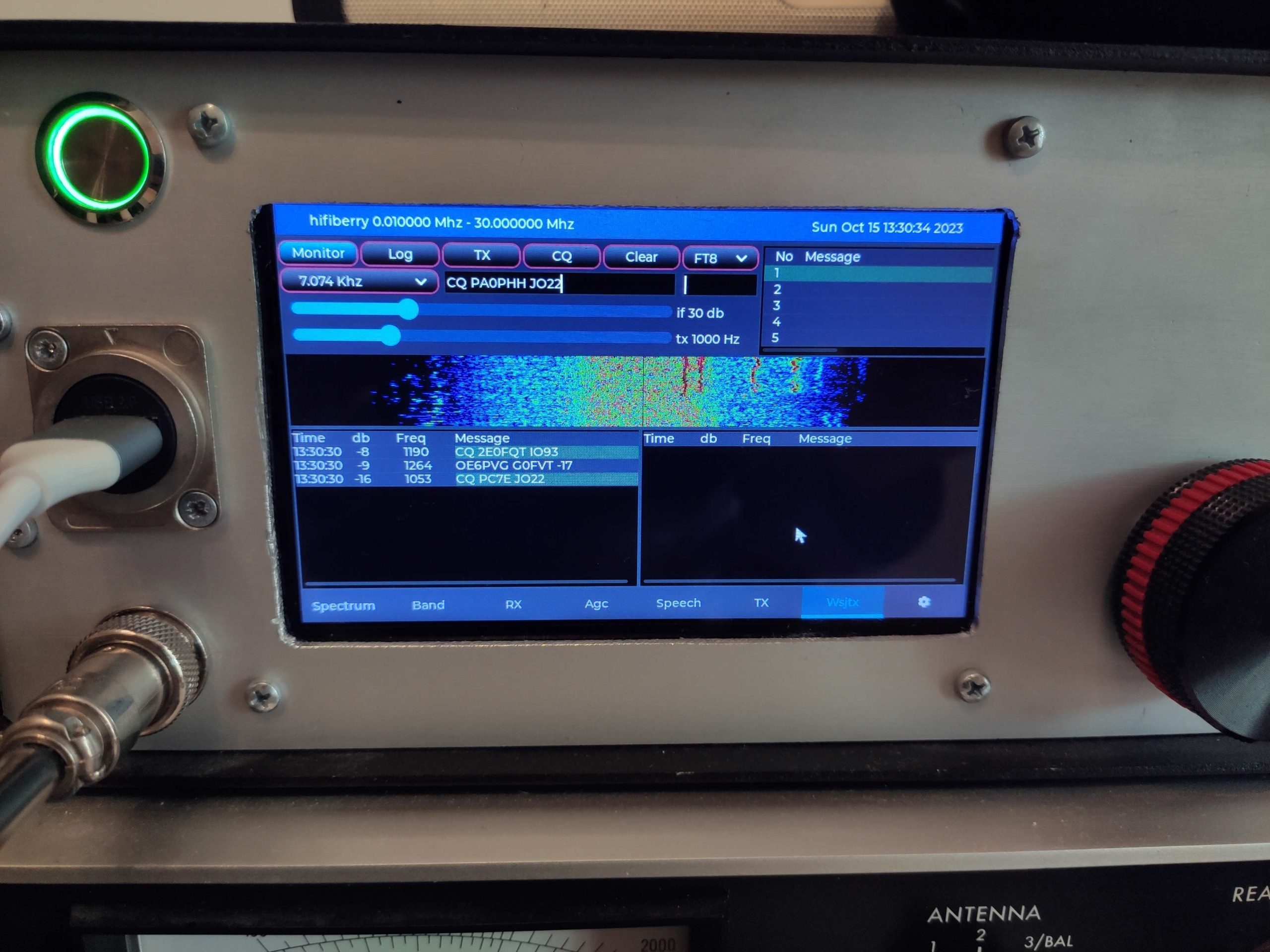
SDRBerry main interface with waterfall and touch controls
✨ Project in active development: SDRBerry is currently in beta and keeps evolving, with new features added regularly. The source code is available on GitHub.
⏱️ Installation time: 2-3 hours (including compilation)
💡 Level: intermediate (basic Linux knowledge)
📦 Total cost: from €150 (Raspberry Pi + screen + RTL-SDR)
🔍 Main features
Native support for Pluto, RadioBerry, RTL-SDR, SDRPlay, HackRF and more via SoapySDR
LVGL graphical interface optimised for 7" touchscreens (800x480 or 1280x720)
SSB, FM, FT8 and more, with a built-in Morse decoder
Advanced LMS and spectral noise reduction algorithms (DD4WH code)
Compatible with N1MM+ and other software via the FT-891 CAT protocol
VueJS 3 web interface for remote control
Joe Taylor K1JT's WSJTX library for FT8
Support for optical encoders, MIDI controllers, I2C filters
Real-time spectrum and waterfall
🛠️ Hardware required
📦 List of hardware needed
| Component | Specification | Notes |
|---|---|---|
| 🖥️ Raspberry Pi | Pi 4 Model B (4GB/8GB) or Pi 5 | REQUIRED Pi 4 recommended as a minimum |
| 📱 Touchscreen | 7" DSI 800x480 or Touch 2 1280x720 | Waveshare or official Raspberry Pi screens |
| 💾 Storage | 32GB+ USB stick (Samsung Fit Plus) | ⚠️ Avoid SD cards (unreliable) |
| 🔊 Audio interface | Generic USB audio adapter | For audio input/output |
| 📡 SDR hardware | Pluto / RadioBerry / RTL-SDR / SDRPlay | Depending on your needs and budget |
| ⚡ Power supply | 5V 3A minimum (USB-C for Pi 4/5) | Official power supply recommended |
| 🎛️ Controllers (optional) | Optical encoder / Contour Shuttle / MIDI | For VFO and settings control |
⚠️ Important, choice of storage: SD cards are not recommended as they tend to fail quickly. Use a fast USB stick such as a Samsung Fit Plus 32GB or larger to install Raspberry Pi OS.
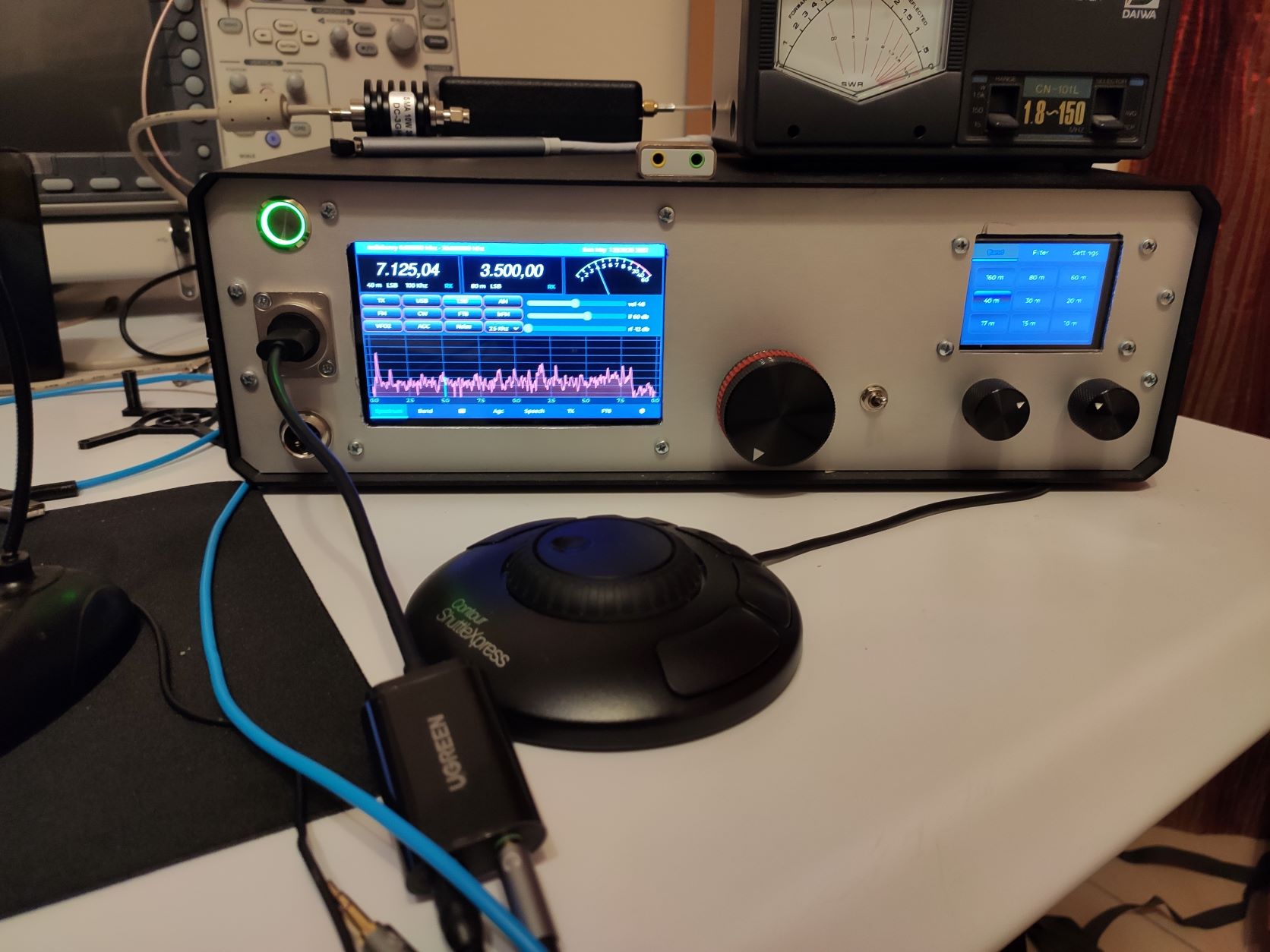
Example of SDRBerry mounted in a professional case with a 7" touchscreen
🔌 Typical connection diagram
📋 Recommended hardware configuration
📡 Supported SDR hardware
🔵 Adalm Pluto SDR
✅ RX/TX 325 MHz - 3.8 GHz
Compact SDR from Analog Devices that can transmit and receive. An excellent price/performance compromise for getting started with a transmitting SDR.
🟢 RadioBerry
✅ RX/TX HF 0-30 MHz
Raspberry Pi HAT designed specifically for HF amateur radio. A complete transceiver with 150mW output. Perfect integration with SDRBerry.
🔴 RTL-SDR
📡 RX ONLY 24 - 1766 MHz
A DVB-T USB dongle converted into an SDR. A budget solution for receive only. No transmitting possible with an RTL-SDR.
🟣 SDRPlay (RSP)
📡 RX ONLY High performance
High-end SDR receivers. Excellent sensitivity and dynamic range. RSPdx, RSP1A models, etc. Receive only, no transmitting.
🟠 HackRF One
✅ RX/TX 1 MHz - 6 GHz
Open-source half-duplex SDR: it transmits or receives, but not both at the same time. Wide bandwidth. For advanced users.
🎵 HiFiBerry + DirectSDR
🎛️ QSD/QSE Audio SDR
Uses a HiFiBerry sound card as an SDR. A high-quality audio solution for HF. With a QSE (Quadrature Sampling Exciter), transmitting is possible.
💡 Which SDR should you choose?
- Beginner on a limited budget: RTL-SDR (~€25) for receive only
- Affordable HF/VHF RX/TX: Adalm Pluto (~€200)
- Integrated Raspberry Pi solution: RadioBerry HAT (~€150)
- High-end reception: SDRPlay RSPdx (~€200)
- Wideband RX/TX: HackRF One (~€300)
⚠️ IMPORTANT, transmit (TX) capability:
SDRBerry can ONLY transmit if your SDR hardware supports it!
- ✅ Transmitting possible: Adalm Pluto, RadioBerry, HackRF, HiFiBerry (with QSE)
- ❌ Receive only: RTL-SDR, SDRPlay (all RSP models)
If you want to transmit (FT8, SSB, etc.), you must choose an SDR with TX capability such as the Pluto or the RadioBerry. The RTL-SDR and SDRPlay are excellent for reception but cannot transmit.
💻 Preparing the Raspberry Pi
Step 1: installing Raspberry Pi OS
⚠️ Specific configuration required: SDRBerry requires 64-bit Raspberry Pi OS in CLI mode (console only), with no graphical desktop. Use Raspberry Pi OS Lite 64-bit Bullseye or Bookworm.
- Download Raspberry Pi Imager: go to raspberrypi.com/software and download the official tool for your system (Windows/Mac/Linux).
- Prepare the USB stick: plug your USB stick (32GB minimum) into your computer. ⚠️ All data will be erased!
- Launch Raspberry Pi Imager: open the application and configure:
- OS: Raspberry Pi OS (other) → Raspberry Pi OS Lite (64-bit)
- Storage: select your USB stick
- Advanced settings (⚙️): click on the gear icon and configure:
- ✅ Enable SSH
- ✅ Set the user:
pi/ a password of your choice - ✅ Configure WiFi: SSID and password
- ✅ Set the locale: Europe/Zurich, Swiss keyboard
- Write the image: click “Write” and wait (10-15 minutes depending on the speed of the USB stick).
- First boot: plug the USB stick into the Pi and connect the screen, keyboard and power supply. The Pi boots automatically in console mode.
✅ SSH connection: once the Pi has booted, you can connect over SSH from your computer: ssh pi@raspberrypi.local (use the password you set).
Step 2: initial configuration with raspi-config
Once connected to the Pi (over SSH or directly), run the basic configuration:
⚙️ Settings to configure in raspi-config:
- System Options → Boot / Auto Login: select
Console Autologinto boot automatically into the console - Interface Options → I2C: enable I2C if you use I2C filters or controllers
- Interface Options → SSH: check that SSH is enabled
- Performance Options → GPU Memory: allocate at least 128MB for the display
- Localisation Options: check the locale, timezone and keyboard
Finish with: “Finish”, then accept the reboot.
Step 3: updating the system
After the reboot, log in and update the system:
⏱️ Be patient: this step can take 15-30 minutes depending on your Internet connection and the number of packages to update. This is normal!
After the update, reboot the Pi:
🚀 Installing SDRBerry
Step 4: downloading the installation script
SDRBerry provides an automatic installation script that makes setup much easier. The script installs all the necessary dependencies for your hardware configuration.
⚡ Installation script syntax
SDR_TYPE: type of SDR used
PLT= Adalm PlutoRDB= RadioBerryRTL= RTL-SDRSDP= SDRPlayHRF= HackRFHFB= HiFiBerry (QSD/QSE)No= no device (test)
SCREEN_TYPE: type of touchscreen
DSI= 7" DSI screen 800x480 (16-bit colour)T1= Raspberry Pi Touch Display 1 (7" 800x480, 32-bit)T2= Raspberry Pi Touch Display 2 (7" 1280x720, 32-bit)
Step 5: installing for your configuration
Choose the command that matches your hardware. Here are the most common configurations:
🔵 Adalm Pluto + DSI configuration
wget https://raw.githubusercontent.com/paulh002/sdrberry/master/install/install.sh
chmod +x install.sh
./install.sh PLT DSI
🟢 RadioBerry + Touch 1 configuration
wget https://raw.githubusercontent.com/paulh002/sdrberry/master/install/install.sh
chmod +x install.sh
./install.sh RDB T1
🟢 RadioBerry + Touch 2 configuration
wget https://raw.githubusercontent.com/paulh002/sdrberry/master/install/install.sh
chmod +x install.sh
./install.sh RDB T2
🔴 RTL-SDR + DSI configuration
wget https://raw.githubusercontent.com/paulh002/sdrberry/master/install/install.sh
chmod +x install.sh
./install.sh RTL DSI
🟣 SDRPlay + DSI configuration
wget https://raw.githubusercontent.com/paulh002/sdrberry/master/install/install.sh
chmod +x install.sh
./install.sh SDP DSI
🎵 HiFiBerry + DSI configuration
wget https://raw.githubusercontent.com/paulh002/sdrberry/master/install/install.sh
chmod +x install.sh
./install.sh HFB DSI
⏱️ A long installation: the installation script compiles many libraries (Liquid-DSP, SoapySDR, WSJTX, etc.). On a Raspberry Pi 4, allow 1 to 2 hours for the installation. Do not unplug the Pi during this time!
Step 6: what does the installation script do?
📦 Components installed automatically
- ✅ Liquid-DSP: signal processing library (Joseph D. Gaeddert)
- ✅ LVGL v8: graphics toolkit for the touch interface (Gabor Kiss-Vamosi)
- ✅ SoapySDR: universal SDR framework
- ✅ Specific SDR drivers: depending on your choice (Pluto, RadioBerry, etc.)
- ✅ WSJTX Library: Joe Taylor K1JT's Fortran code for FT8
- ✅ FFTW3: optimised FFT library
- ✅ ALSA: Linux audio management
- ✅ CivetWeb: embedded web server for remote control
- ✅ DD4WH noise reduction: advanced filtering algorithms
- ✅ Screen configuration: settings optimised for your touchscreen
⚙️ Post-installation configuration
Step 7: rotating the screen (if needed)
For some DSI screens (Waveshare, for example), you may need to adjust the display rotation.
📁 Example configuration files: the GitHub repository contains example config.txt and cmdline.txt files in the install/bullseye-7inch rpi/ directory
To change the display configuration:
Add or edit these lines to suit your screen:
lcd_rotate=2
# Or for a Waveshare DSI screen
dtoverlay=vc4-kms-dsi-waveshare-panel,7_inch
Save with Ctrl+O, Enter, then Ctrl+X. Reboot the Pi.
Step 8: setting the resolution
The default resolution is 800x480. If you use a different screen, you can change the resolution in the source code (advanced):
📖 Documentation: see the GitHub Wiki for details: Screen Resolution Wiki
Step 9: audio configuration
SDRBerry uses ALSA for audio. Check that your USB audio adapter is detected:
You should see your USB audio card listed. Note the card number (e.g. card 1).
🔊 Setting the audio device in SDRBerry
When you first launch SDRBerry, you can select your audio device in the configuration interface. SDRBerry automatically detects the available audio cards.
🎮 Launching and using SDRBerry
Step 10: first launch
SDRBerry can be launched in user mode or as root, depending on the SDR used.
⚠️ Important: for the RadioBerry, you MUST use sudo because it needs low-level hardware access.
Standard launch (Pluto, RTL-SDR, SDRPlay, etc.):
sdrberry > sdrberry.log 2>&1
Launch with sudo (RadioBerry, HackRF):
sudo sdrberry > sdrberry.log 2>&1
✅ Successful first start: the LVGL graphical interface should appear on your touchscreen. You can now configure SDRBerry via the Setup menu!
Step 11: finding your way around the interface
🖱️ Control methods
- ✋ Touchscreen: touch the on-screen controls directly
- 🖱️ USB mouse: plug in a mouse for precise navigation
- ⌨️ USB keyboard: useful for FT8 and text entry
- 🎛️ Optical encoder: via GPIO or an ESP32 (advanced configuration)
- 🎚️ Contour Shuttle Express: dedicated USB jog/shuttle controller
- 🎹 MIDI controller: for advanced control of settings
- 🎵 USB HID volume controller: a cheap way to control the VFO
💡 Tip: the installation script automatically adds usbhid.mousepoll=2 to the cmdline.txt file to make the USB mouse more responsive.
Step 12: initial configuration
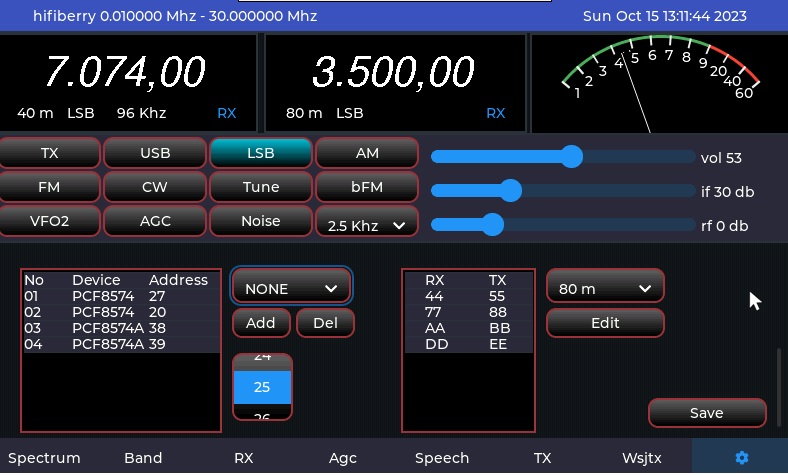
Configuration menu for setting the SDR, audio, network and filters
⚙️ Settings to configure at first launch
- 🔌 SDR selection: choose your SDR device in the menu
- 🔊 Audio configuration: select the input/output devices
- 📡 Initial frequency: set the start-up frequency (e.g. 14.200 MHz)
- 📻 Receive mode: SSB (USB/LSB), FM, FT8, etc.
- 🌐 Network configuration: WiFi and network settings if needed
- 💡 Screen brightness: adjust the TFT brightness
- 🔧 I2C filters: if you use automatic filters
🌐 Remote control
Option 1: VNC framebuffer
To access the SDRBerry screen remotely from another computer, you can use framebuffer-vnc.
- Installing framebuffer-vnc: the project is available on GitHub. A configuration file is provided in SDRBerry's
install/directory. - Starting the VNC server: run framebuffer-vnc in the background to stream the display.
- VNC connection: use a VNC client (TightVNC, RealVNC, etc.) to connect to the Raspberry Pi's IP address on the default port.
- Watch out for input devices: check the event numbers for the touchscreen and keyboard in the configuration file (e.g.
event1).
💡 VNC tip: the framebuffer VNC shows the SDRBerry interface exactly as on the physical screen, unlike standard VNC, which does not work in CLI console mode.
Option 2: web interface (WebServer)
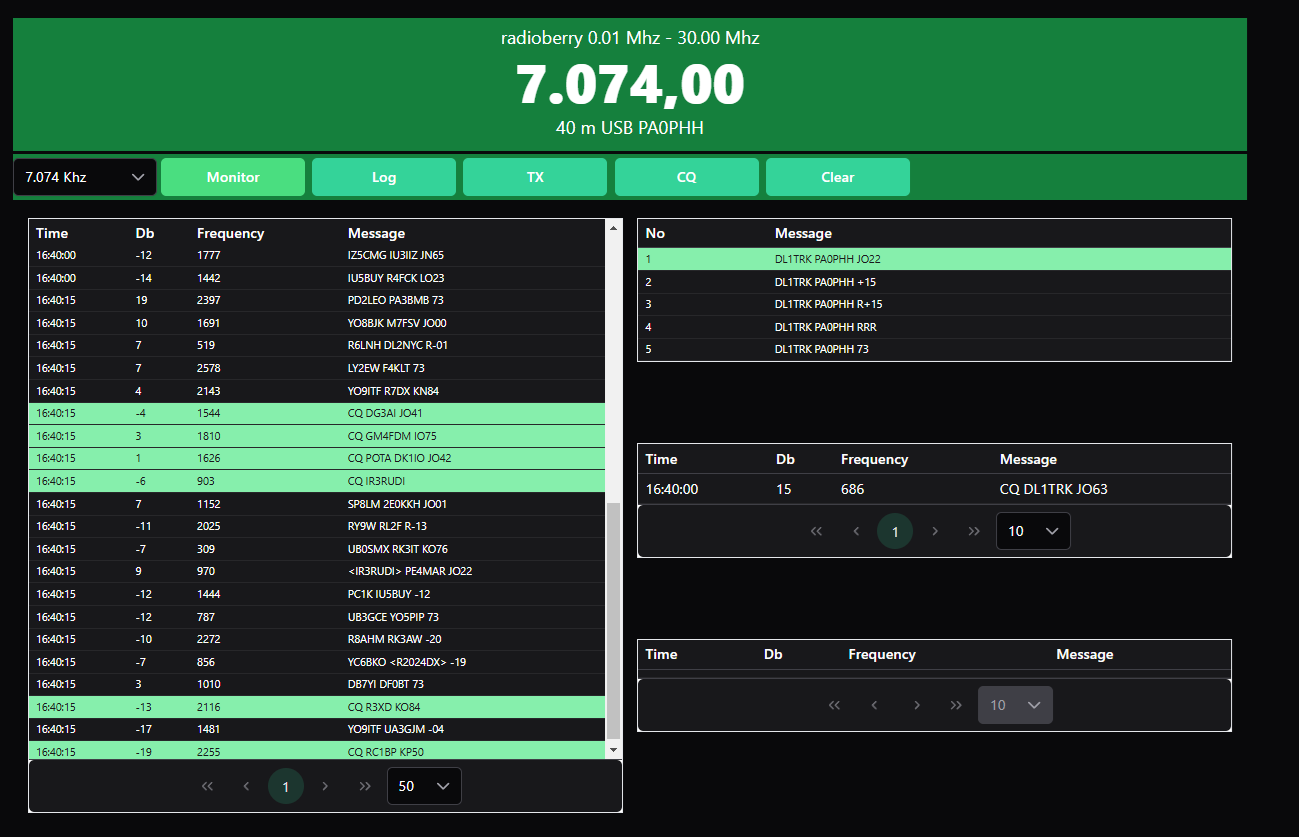
VueJS 3 web interface for remote control from a browser
SDRBerry includes an experimental web server built with VueJS 3 and PrimeVue for remote control.
- Installing the web server: copy the
sdrwebdirectory to the Pi's home directory:cp -r ~/sdrberry/sdrweb ~/ - Launching SDRBerry: the web server starts automatically with SDRBerry.
- Accessing the web interface: open your browser and go to:http://[RASPBERRY_PI_IP]:8081
- Web features: the interface lets you control the main functions: frequency, mode, gain, etc.
🔬 Experimental version: the web interface is in beta. Not all features are implemented yet. The source code will be shared in a separate GitHub repository.
Option 3: CAT control
SDRBerry supports the Yaesu FT-891-compatible CAT (Computer Aided Transceiver) protocol for interfacing with third-party software.
📝 Logging with N1MM+
TCP/IP connection for contest logging. SDRBerry behaves like an FT-891, and N1MM+ can follow the frequency and mode in real time.
📊 QLog integration
SDRBerry sends messages to QLog or other logging software via the CAT protocol. Automatic QSO synchronisation.
🛰️ WSJT-X UDP client
SDRBerry acts as a UDP client for WSJT-X. It sends Heartbeat, Decode and QSO messages to the specified IP address.
🔌 USB CAT interface
Support for a USB serial interface via an ESP32 configured as a CAT controller (see the config file).
🎛️ Advanced controllers and peripherals
Optical encoder on GPIO
For ultra-precise VFO control, you can connect a rotary optical encoder directly to the Raspberry Pi's GPIO pins.
⚠️ Hardware modification required: this option requires hardware changes and advanced configuration. See the GitHub documentation for wiring diagrams.
ESP32 as a CAT controller
An ESP32 can be programmed to act as a controller with an optical encoder for the VFO and 2 mechanical encoders for volume and gain.
🔌 ESP32 configuration
- 1 optical encoder: high-resolution VFO control
- 2 mechanical encoders: audio volume and RF gain
- Serial interface: communication over USB with the Raspberry Pi
- Configuration: see the example in the SDRBerry cfg file
Contour Shuttle Express
The Contour Shuttle Express is a professional USB jog/shuttle controller that works perfectly with SDRBerry, plug and play.
✅ Plug & Play: the Contour Shuttle Express is detected automatically. Use the wheel for the VFO and the buttons for quick functions.
USB HID volume controllers
Cheap USB HID controllers (the kind of USB knob used to adjust volume) can be used as an inexpensive VFO control.
💡 A budget solution: a simple USB volume controller at ~€10 can serve as a rotary VFO. It is an excellent alternative to expensive optical encoders.
Automatic I2C filters
SDRBerry supports automatic band-pass filters via I2C (PCF8574). Ideal for improving receive performance.
🔧 Configuring I2C filters
- Enabling I2C: already done via raspi-config (step 2)
- PCF8574 module: I2C controller for the filter relays
- SDRBerry configuration: Setup menu → I2C Configuration
- Automatic switching: according to the selected frequency band
📻 Operating modes
The main mode for HF and VHF communications
Narrowband FM for local VHF/UHF
Wideband FM radio reception (RX only)
Digital mode with a built-in WSJT-X decoder
Open-source digital voice
Built-in CW decoder
Using FT8 mode
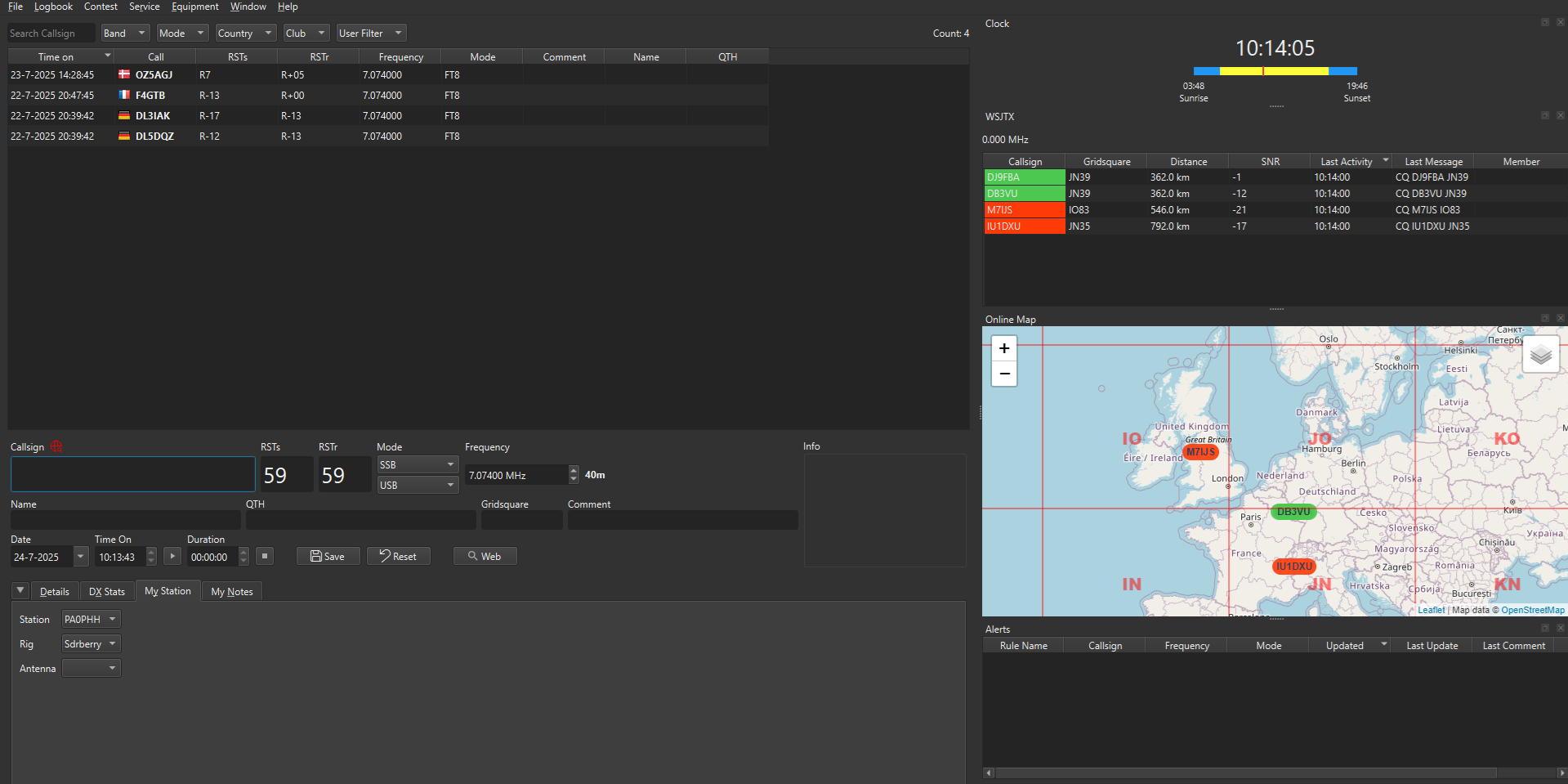
FT8 interface with built-in WSJT-X decoder and station list
SDRBerry includes Joe Taylor's (K1JT) WSJTX library for FT8 decoding and encoding.
- Select FT8 mode: in the main menu, switch the mode to FT8.
- Set the frequency: tune to a standard FT8 frequency (e.g. 14.074 MHz for 20m).
- Waterfall and decoding: the waterfall shows the FT8 signals. The decoder analyses them automatically every 15 seconds.
- Keyboard for FT8: plug in a USB keyboard to enter your callsign and grid locator.
- Automatic TX/RX: SDRBerry handles FT8 TX/RX sequencing automatically.
- Standard messages: predefined macros for standard FT8 QSOs (CQ, report, 73).
💡 WSJT-X UDP: SDRBerry can also send FT8 decodes to external software via UDP (e.g. WSJT-X on another computer) for logging and statistics.
🔧 Advanced features
Noise reduction
SDRBerry includes several noise reduction algorithms adapted from DD4WH's UHSDR project.
🔊 LMS (Least Mean Square)
An adaptive algorithm to reduce noise in real time. Effective on weak signals with constant background noise.
📊 Spectral Noise Reduction
Advanced spectral reduction developed by Kim. FFT analysis removes noise while preserving the signal.
⚙️ Adjustable settings
Reduction level configurable through the interface. Try different settings depending on propagation conditions.
🎛️ Instant on/off
Quick on/off switching to compare with and without noise reduction. Dedicated button in the interface.
📌 Note from the author (PA0PHH): “The noise reduction code is a port of DD4WH's remarkable work for UHSDR, adapted to run on the Raspberry Pi with Liquid-DSP. Performance is excellent on SSB!”
Waterfall display
Real-time waterfall display with FFT spectrum
The waterfall display lets you see the RF spectrum in real time and how signals change over time.
📊 Waterfall features
- Real-time spectrum: FFT with fast refresh
- History waterfall: scrolling vertical display
- Adjustable bandwidth: zoom in on areas of interest
- Colour palette: customisable for better contrast
- Click-to-tune: click on a signal to tune to it
- Band markers: band edges displayed
Safe shutdown button
SDRBerry includes a shutdown button in the interface to switch off the Raspberry Pi cleanly, without risk of corrupting the USB stick.
⚠️ IMPORTANT: NEVER switch off the Raspberry Pi by simply unplugging the power! Always use the Shutdown button in the interface or the command sudo shutdown -h now over SSH. This prevents file system corruption.
🔬 Troubleshooting and common problems
🚨 Problem: SDRBerry does not detect my SDR
Solutions:
- Check that the SDR is properly connected via USB
- Test detection with SoapySDRUtil:
SoapySDRUtil --find - For the Pluto: check the USB network connection (IP address 192.168.2.1)
- For the RadioBerry: check that you are launching with
sudo - Check the logs:
cat ~/sdrberry.log
🚨 Problem: no audio on receive
Solutions:
- Check that the USB audio card is detected:
aplay -l - Test the system audio:
speaker-test -c 2 - In SDRBerry: Setup menu → Audio → select the right device
- Turn up the volume in the SDRBerry interface
- Check that the mode is not set to MUTE
🚨 Problem: the touchscreen does not respond
Solutions:
- Check the DSI connection of the screen cable
- Test with a USB mouse to see whether the problem is the screen or the interface
- Check the event numbers:
ls /dev/input/ - Adjust the config file if necessary (see install/)
- For Touch Display 2: check that you used
T2during installation
🚨 Problem: graphical interface too small/too large
Solutions:
- Check the resolution in
/boot/config.txt - SDRBerry is optimised for 800x480 (DSI) or 1280x720 (Touch 2)
- See the Wiki to change the resolution: GitHub Wiki
- Changing the resolution requires recompiling (advanced)
🚨 Problem: latency or lag in the interface
Solutions:
- Use a Raspberry Pi 4 (4GB or 8GB) as a minimum; the Pi 3 is too slow
- Check that you are using a fast USB stick (not an SD card!)
- Reduce the FFT size if the waterfall is too demanding
- Close unnecessary background programs
- For a USB mouse: the
usbhid.mousepoll=2setting is already added by install.sh
🚨 Problem: compilation error during installation
Solutions:
- Check that you are using 64-bit Raspberry Pi OS (not 32-bit)
- Make sure the system is up to date:
sudo apt update && sudo apt upgrade - Check the available disk space:
df -h - Run the installation again after a reboot
- Look at the error logs and report on GitHub if the problem persists
📖 Resources and documentation
📂 Official GitHub repository
Source code, documentation, wiki, configuration examples and community support.
🔗 Go to GitHub📺 Demonstration video
See SDRBerry in action in a professional case with a VFO knob and touchscreen.
🎬 Watch on YouTube📚 Further documentation
- GitHub Wiki: https://github.com/paulh002/sdrberry/wiki
- Installation guide: the
install_guide.txtfile in the repository - Config examples: the
install/directory on GitHub - Issues and support: GitHub Issues
🎓 Going further
🔧 Related projects
- RadioBerry: official SDR HAT
- UHSDR: DD4WH project
- WSJT-X: K1JT's FT8 suite
- Liquid-DSP: DSP library
📖 Learning
- Modern C++: educational code
- Liquid-DSP: signal processing
- LVGL: embedded GUI
- SoapySDR: SDR framework
💬 A message from the author, PA0PHH: “SDRBerry is an open-source learning project. Its main aim is to explore C++ programming, signal processing with Liquid-DSP and, above all, the use of the LVGL v8 GUI toolkit. Contributions and suggestions are welcome on GitHub!”
❓ Frequently asked questions (FAQ)
❓ Which Raspberry Pi should I choose?
Answer: a Raspberry Pi 4 Model B (4GB or 8GB) is the recommended minimum. The Pi 5 works too. The Pi 3 is too slow for a smooth graphical interface.
❓ Can I use an SD card?
Answer: not recommended! SD cards are slow and often fail. Use a fast USB stick (Samsung Fit Plus 32GB+) for better reliability.
❓ Does SDRBerry support transmitting?
Answer: yes, with SDRs that support TX: Pluto, RadioBerry, HackRF and HiFiBerry (QSE). The RTL-SDR and SDRPlay are RX only.
❓ Can SDRBerry be used without a screen?
Answer: yes, via the framebuffer VNC or the web interface. But the best experience is still with a 7" touchscreen connected directly.
❓ Is SDRBerry stable?
Answer: the project is in beta. The basic features (SSB and FM reception) are stable. FT8 and TX are under active development. Expect bugs and frequent updates.
❓ Can I contribute to the project?
Answer: absolutely! SDRBerry is open source. See GitHub to contribute: code, documentation, testing, bug reports, etc.
🚀 Get started with SDRBerry!
You now have everything you need to install and configure SDRBerry on your Raspberry Pi. Feel free to experiment, customise and share your projects with the amateur radio community!
Happy SDR operating and 73! 📡
📂 See the project on GitHub📋 Complete installation checklist
✅ Final checklist
- ☐ Raspberry Pi 4/5 with a suitable power supply
- ☐ 32GB+ USB stick (not an SD card!)
- ☐ 7" touchscreen (DSI, Touch 1 or Touch 2)
- ☐ SDR hardware of your choice (Pluto / RadioBerry / RTL-SDR / etc.)
- ☐ Generic USB audio adapter
- ☐ Raspberry Pi OS 64-bit Lite installed
- ☐ System updated (
apt update && upgrade) - ☐ raspi-config: I2C enabled, CLI autologin boot
- ☐ install.sh script downloaded and run
- ☐ SDRBerry launched successfully
- ☐ Audio configured and working
- ☐ SDR detected in the interface
- ☐ Reception tested and confirmed
- ☐ (Optional) Encoder/controller configured
- ☐ (Optional) I2C filters configured
- ☐ (Optional) Web interface accessible


This site measures its audience with Google Analytics, only if you accept. No advertising. Find out more