📡 FT8: The Digital Mode that is Revolutionising Amateur Radio
Since its launch in 2017, the FT8 digital mode has transformed amateur radio around the world. Able to decode signals buried as far as -24 dB below the noise, this protocol makes intercontinental contacts possible with minimal power and a modest antenna. Whether you are a seasoned operator or a beginner, this complete guide takes you from the theory to your first FT8 QSO.
📚 What is FT8?
FT8 (Franke-Taylor design, 8-FSK modulation) is a digital communication mode developed in 2017 by Joe Taylor K1JT, winner of the 1993 Nobel Prize in Physics, and Steve Franke K9AN, a professor at the University of Illinois. It is part of the WSJT-X software suite (Weak Signal Joe Taylor), designed specifically for weak-signal communications.
Within a few years, FT8 has become the most widely used mode on the HF bands. Its success rests on three major strengths: exceptional sensitivity (decoding possible at -24 dB below the noise level), speed (a complete QSO in under a minute) and extensive automation that simplifies operating.
Unlike traditional voice modes (SSB, FM), where the operator has to understand what they hear, FT8 leaves the decoding to the computer. The software extracts structured messages from the signal, even when it is completely inaudible to the human ear. This opens the door to contacts that would simply be impossible on phone or CW.
💡 Did you know? Joe Taylor K1JT received the Nobel Prize in Physics in 1993 for the discovery of a new type of pulsar, a discovery that confirmed the existence of the gravitational waves predicted by Einstein. A keen radio amateur, he has devoted much of his spare time to developing weak-signal communication protocols.
FT8 within the WSJT-X ecosystem
FT8 is not the only mode in the WSJT-X suite. It coexists with several other protocols, each optimised for a specific use. Here is a comparison of the main weak-signal digital modes:
| Mode | Cycle length | Bandwidth | Sensitivity | Main use |
|---|---|---|---|---|
| FT8 | 15 seconds | 50 Hz | -24 dB | Quick QSOs, everyday DX, contests |
| FT4 | 7.5 seconds | 83 Hz | -17.5 dB | Fast contests, digital sprints |
| JT65 | 60 seconds | 178 Hz | -28 dB | EME (Earth-Moon-Earth), very weak signals |
| JT9 | 60 seconds | 16 Hz | -27 dB | HF weak signals, narrow bands |
| WSPR | 120 seconds | 6 Hz | -31 dB | Propagation monitoring (no QSOs) |
| JS8Call | Variable | 50 Hz | -24 dB | Free-text messages, conversations (based on FT8) |
| MSK144 | 15 seconds | 2400 Hz | -8 dB | VHF meteor scatter |
| Q65 | 15-300 sec | 65-520 Hz | -26 to -29 dB | EME, VHF/UHF tropo |
FT8 offers the best compromise between speed and sensitivity, which explains its overwhelming popularity. FT4, faster but less sensitive, is mainly used in contests. JS8Call, based on the FT8 protocol, adds the ability to exchange free-text messages, a feature that standard FT8 does not offer.
⚙️ How does FT8 work?
Understanding how FT8 works technically helps you use it better and diagnose any problems. Here are the key principles.
15-second transmission cycles
FT8 works on a system of rigid 15-second cycles, synchronised to UTC. Transmission periods start at 00, 15, 30 and 45 seconds past each minute. During each period:
- 12.64 seconds are used to transmit the signal
- 2.36 seconds remain for processing (decoding the received signal and preparing the reply)
Stations transmit alternately in the even periods (00, 30) or the odd periods (15, 45). This strict alternation allows very efficient half-duplex operation.
8-FSK (GFSK) modulation
The FT8 signal uses 8-FSK modulation (8-tone Frequency Shift Keying) with Gaussian filtering. This means that 8 different frequencies are used to encode the information, spaced 6.25 Hz apart. The complete signal occupies only 50 Hz of bandwidth, allowing dozens of stations to coexist within the typical 2500 Hz audio passband of an SSB receiver.
Structured messages
Each FT8 message contains exactly 77 bits of useful information, protected by a powerful 174-bit LDPC (Low-Density Parity-Check) error-correcting code, followed by a 14-bit CRC. This redundancy is the key to FT8's ability to decode extremely weak signals.
Messages follow a rigid, structured format. Here is the typical sequence of a complete FT8 QSO:
This complete QSO exchanges the two stations' callsigns, their QTH locators (Maidenhead grid squares), signal reports in dB and confirmations. All in about 75 seconds (5 cycles of 15 seconds).
Figure 1: Complete sequence of an FT8 QSO in 5 periods of 15 seconds
⏰ Clock synchronisation is critical: FT8 relies on precise time synchronisation between all stations. Your computer's clock must be within ±0.5 second of UTC. On Windows, use an NTP client such as Meinberg NTP or Dimension 4. On Linux, the ntpd or chrony daemon does the job. For maximum accuracy, a GPS receiver with a PPS signal is ideal. Check the DT (Delta Time) indicator in WSJT-X: it should stay between -0.5 and +0.5 seconds.
📡 FT8 frequencies by band
FT8 uses standardised frequencies on each amateur band, agreed by worldwide convention. These frequencies are configured by default in WSJT-X. It is essential to stay on these frequencies so that other stations can decode you.
| Band | FT8 frequency | FT4 frequency | USB mode | Notes |
|---|---|---|---|---|
| 160 m | 1.840 MHz | - | USB (Data) | Night-time band, NVIS propagation |
| 80 m | 3.573 MHz | 3.575 MHz | USB (Data) | Very active in the evening in Europe |
| 60 m | 5.357 MHz | - | USB (Data) | Channelised band, check local regulations |
| 40 m | 7.074 MHz | 7.0475 MHz | USB (Data) | Excellent day and night band, very popular |
| 30 m | 10.136 MHz | 10.140 MHz | USB (Data) | WARC band, no contests, quiet |
| 20 m | 14.074 MHz | 14.080 MHz | USB | The DX band par excellence, active 24 hours a day |
| 17 m | 18.100 MHz | 18.104 MHz | USB | WARC band, good DX propagation |
| 15 m | 21.074 MHz | 21.140 MHz | USB | Active during periods of high solar activity |
| 12 m | 24.915 MHz | 24.919 MHz | USB | WARC band, sporadic openings |
| 10 m | 28.074 MHz | 28.180 MHz | USB | Excellent during solar cycle 25 (2024-2026) |
| 6 m | 50.313 MHz | 50.318 MHz | USB | The “Magic Band”, sporadic-E openings |
| 2 m | 144.174 MHz | 144.170 MHz | USB | Tropo, meteor scatter, EME |
| 70 cm | 432.174 MHz | - | USB | Tropo, rain scatter |
⚠️ Important: For FT8, the transceiver is always set to USB (Upper Side Band), even on the low bands (160 m, 80 m, 40 m) where the usual convention for phone is LSB. Some transceivers have a dedicated “DATA-USB” or “DIGU” mode that disables the voice filters: use it if you can.
🔧 Equipment needed for FT8
One of the great advantages of the FT8 digital mode is how modest the required equipment is. Unlike SSB, where power and antenna make the difference, FT8 produces impressive results with minimal equipment.
Essential components
💻 Computer (PC / Mac / Linux)
Even a modest computer will do. WSJT-X runs on Windows 7+, macOS 10.13+ and most Linux distributions. A Raspberry Pi 4 will even do the job! The critical elements are the sound card (built-in or USB) and an Internet connection for NTP synchronisation.
📻 HF transceiver
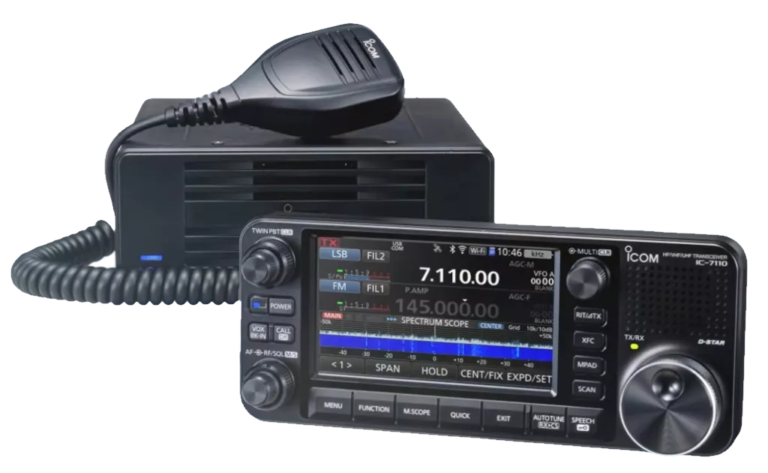
Any HF transceiver will do, from vintage to modern. Recent transceivers (Yaesu FT-891, Icom IC-7300, Kenwood TS-890) have a built-in USB interface that greatly simplifies the wiring. Recommended power: 5 to 50 W is enough.
🎙️ Audio interface
The link between the computer and the transceiver. Three options: a digimode cable (USB to mini-DIN), a dedicated interface such as the SignaLink USB, or the built-in USB of modern transceivers, which handles both audio and CAT.
📡 Antenna
Even a modest antenna works remarkably well on FT8. A simple wire dipole, a vertical antenna, or even a long wire with an antenna tuner will give you worldwide contacts. The beauty of FT8 is that its sensitivity makes up for the antenna's shortcomings.
Recommended equipment and budget
| Equipment | Recommended model | Indicative price (CHF) | Notes |
|---|---|---|---|
| USB audio interface | SignaLink USB | ~CHF 120 | The market benchmark, compatible with all transceivers |
| Digimode cable | USB DATA cable (transceiver-specific) | ~CHF 30-50 | Low-cost alternative to the SignaLink |
| USB CAT cable | CT-62 (Yaesu) / CI-V (Icom) | ~CHF 25-40 | Frequency control, not needed if USB is built in |
| HF transceiver (entry level) | Yaesu FT-891 / Xiegu G90 | ~CHF 600-800 | 100 W, compact, ideal for beginners |
| HF transceiver (mid-range) | Icom IC-7300 | ~CHF 1,200 | Built-in USB, waterfall, internal SDR |
| Wire dipole antenna | 40 m dipole or 80-10 m OCF | ~CHF 30-80 (DIY) | Excellent performance for the cost |
| Vertical antenna | Hustler 6BTV / Diamond CP6 | ~CHF 350-500 | Multiband, needs little space |
| Antenna tuner | Auto tuner (FC-50 / MFJ-939) | ~CHF 200-400 | Essential with a long wire or a vertical |
| USB GPS receiver | BU-353S4 / VK-172 | ~CHF 30-50 | Optional, for ultra-precise PPS synchronisation |
✅ Minimum budget to get started: If you already own an HF transceiver and a PC, a simple CHF 30 digimode cable is all you need to start on FT8. With a modern transceiver that has a USB port (Icom IC-7300, Yaesu FTDX10, etc.), you don't even need any extra accessories: a single USB cable handles everything.
💻 Installing and configuring WSJT-X
WSJT-X is the free, open-source software used to operate FT8. Here are the steps to install and configure it correctly.
- Download WSJT-X: go to wsjt.sourceforge.io and download the latest stable version for your system (Windows, macOS or Linux). As of February 2026, the current version is 2.7.x. Install the software like any standard program.
- Configure your station (“General” tab): start WSJT-X and go to File > Settings. In the “General” tab, enter your callsign (e.g. HB9HPG) and your QTH locator (e.g. JN36GU), and select “FT8” as the default mode. Tick “Double-click on call sets Tx enable” to make operating easier.
- Configure the audio (“Audio” tab): select your audio interface as input (Input) and output (Output). If you use a SignaLink USB, it appears as “USB Audio CODEC”. If your transceiver has built-in USB, it appears under its own name (e.g. “Icom IC-7300”). Set the input level so that the green bar in WSJT-X stays between 30 and 60 dB.
- Configure CAT control (“Radio” tab): CAT control (Computer Aided Transceiver) lets WSJT-X drive your transceiver. Select your radio's model, the serial port (COM port on Windows, /dev/ttyUSBx on Linux) and the baud rate (usually 38400 or 115200 baud). Click “Test CAT”: the indicator should turn green.
- Configure PTT (Push-To-Talk): PTT controls switching between transmit and receive. The options are: VOX (the transceiver detects the audio), CAT (software command via the serial port) or RTS/DTR (hardware signal on the serial port). CAT is the cleanest method if your transceiver supports it.
- Synchronise the PC clock: this is the most critical step. On Windows, install Meinberg NTP (free) or use “w32tm /resync” from the command line. On Linux, check that
chronyorntpdis running. The DT indicator in WSJT-X should show a value between -0.5 and +0.5 seconds. - Calibrate the audio levels: set the transceiver's output power to about 50% of maximum power to avoid distortion. On FT8, linearity is essential: excessive power creates intermodulation products that interfere with neighbouring stations. Check your transceiver's ALC: it must never light up.
- Test on receive: tune your transceiver to 14.074 MHz (20 m) in USB. After a few seconds you should see decoded signals appear in the main WSJT-X window. If nothing appears, check the audio wiring, the input level and the clock.
⚠️ Important: FT8 transmitting rules:
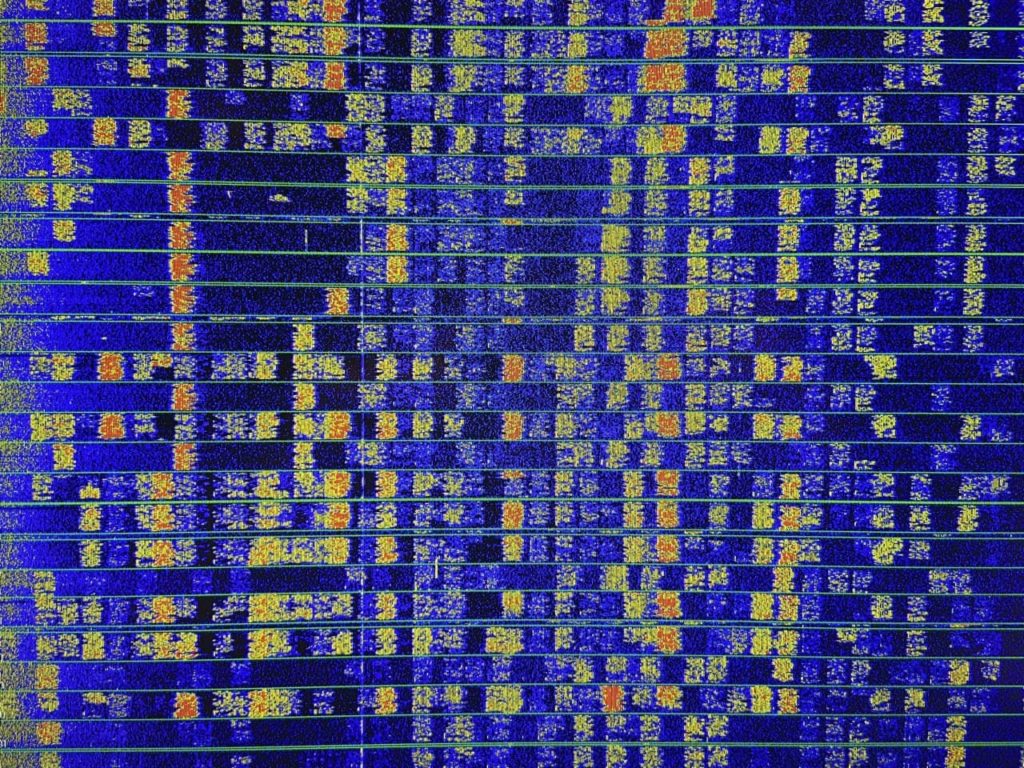
- Never transmit on an occupied frequency: always check the waterfall before transmitting. Choose a clear gap between existing signals.
- Always use USB mode (or DATA-USB / DIGU), even on the low bands (160 m, 80 m, 40 m).
- Limit your power: on FT8, 20-50 W is enough for DX. More power = more risk of intermodulation interference.
- Watch your ALC: the transceiver's ALC indicator must NEVER come on. Reduce the PC's audio output level if necessary.
- Do not change the transceiver frequency during a transmission. Change band between cycles, not during them.
📧 Making your first FT8 QSO
Your station is configured and signals are being decoded on screen: time to make your first contact! Here is the step-by-step guide.
Option 1: Answer a CQ
This is the easiest way to start. Watch the decoded messages in the main window and look for a CQ message:
- Spot a CQ: look for a message such as “CQ DL1ABC JO40” in the decode window. CQ messages appear in red in WSJT-X. Preferably choose a station with a strong signal (positive report, e.g. +05 dB).
- Double-click on the CQ: WSJT-X automatically prepares the reply sequence. Your message will be: “DL1ABC HB9HPG JN36”. Transmission will start on the next odd (or even, depending on the CQ's period) cycle.
- Wait for the reply: if the station hears you, it will reply with a signal report: “HB9HPG DL1ABC -12”. WSJT-X automatically handles the rest of the exchange.
- Let WSJT-X complete the QSO: the software automatically sends the successive messages (report, R+report confirmation, RRR, 73). The QSO is complete when you see the “73” message.
- Log the contact: WSJT-X automatically offers to log the QSO at the end of the exchange. Check the details and click “OK”. The log is saved in ADIF format.
Option 2: Call CQ
To call CQ yourself:
- Check the waterfall: find a clear audio frequency (a gap with no visible signal on the waterfall). Click on that gap to set your transmit frequency.
- Enable CQ: select the “CQ” message in the transmit area (usually Tx 6: “CQ HB9HPG JN36”) and click “Enable Tx”.
- Be patient: your CQ will be sent every cycle. If a station replies, WSJT-X detects it and automatically starts the QSO sequence.
Tips for your first contacts
🔍 Use QRZ.com
Configure WSJT-X to open the QRZ.com page of the station you are working automatically. This lets you see your contact's name, location and equipment. Go to Settings > General > Network Services.
📋 Log with WSJT-X
The built-in WSJT-X log records every QSO in ADIF format. This file is compatible with all logging software (Log4OM, DXKeeper, N1MM+). Also enable the ALL.TXT log, which keeps all decoded messages: useful for analysis.
🚀 Upload to LoTW, eQSL, ClubLog
To confirm your contacts for awards (DXCC, WAS, WAZ), upload your logs to LoTW (ARRL Logbook of the World), eQSL and ClubLog. The JTAlert software can automate these uploads in real time.
🌐 Check propagation with PSK Reporter
Before transmitting, check PSK Reporter to see which bands are open and where your signals are being received. This tool is indispensable for choosing the right band at the right time.
🌐 PSK Reporter and propagation monitoring
PSK Reporter (pskreporter.info) is a free web tool that no FT8 operator should be without. It collects the reception reports sent automatically by thousands of WSJT-X stations around the world and displays them on an interactive map.
How PSK Reporter works
By default, WSJT-X automatically sends PSK Reporter the list of all the stations it decodes. This means that as soon as you transmit on FT8, your signal is reported by every station that decodes you. You can then see on the map:
- Who hears you: enter your callsign in the “Sending” field to see all the stations that have decoded your signal
- Who is active: enter a prefix (HB9, F, DL, etc.) to see a country's activity
- Which bands are open: filter by band to identify propagation openings in real time
- Worldwide coverage: view the links between transmitters and receivers on the world map
Practical use
📈 Before transmitting
Check PSK Reporter to identify the bands open towards your target destination. If you are after Japan, check whether JA stations are being decoded on 20 m or 17 m. This saves you wasting time on a closed band.
📊 After transmitting
Check where your signal was received. It is an excellent way to assess your antenna's performance and compare different set-ups. If you are being received in Japan with 5 W, your antenna is working well!
📍 DX hunting
Use PSK Reporter to spot rare stations active on FT8. Filter by prefix (3B8, VP8, ZL, etc.) and identify the bands they are transmitting on. It is an unrivalled DX-hunting tool.
🚀 Propagation study
PSK Reporter lets you visualise propagation paths in real time. You can watch sporadic-E openings on 6 m, long-distance paths on 20 m, and even transpacific links on 40 m in the evening.
“PSK Reporter is like a real-time X-ray of the bands. You can see instantly where the bands are open, who is active and how far your signals are reaching. It's a tool radio amateurs could only have dreamt of 30 years ago!”, an HB9 operator
✅ Did you know? With just 5 watts and a simple wire antenna (dipole or long wire), FT8 lets you contact every continent. Many radio amateurs have earned the DXCC award (100 confirmed entities) running QRP (less than 5 W) thanks to FT8. The sensitivity of -24 dB below the noise more than makes up for the low transmit power.
💻 Complementary software
Beyond WSJT-X, several programs enhance the FT8 experience:
| Software | Platform | Price | Description |
|---|---|---|---|
| WSJT-X | Win / Mac / Linux | Free | Main software for FT8, FT4, JT65, WSPR, Q65. Open source (K1JT). |
| JTDX | Win / Mac / Linux | Free | WSJT-X fork with an improved decoder that decodes more weak signals. |
| JTAlert | Windows | Free / Donation | Audible and visual alerts for new DXCC entities, bands and modes. Automatic upload to LoTW/ClubLog. |
| GridTracker | Win / Mac / Linux | Free | Real-time world map of decoded stations. Maidenhead grid square tracking. |
| JS8Call | Win / Mac / Linux | Free | Based on FT8, allows free-text messages (conversations, store-and-forward relaying). |
| Log4OM | Windows | Free (v2) | Full logbook with WSJT-X, LoTW, eQSL and ClubLog integration and DXCC tracking. |
| MSHV | Win / Linux | Free | Multi-decoder alternative: can handle several simultaneous FT8 QSOs (multi-streaming). |
⚖️ Advantages and limitations of FT8
FT8 has its enthusiastic supporters and its critics. Here is a balanced assessment of the mode.
Intercontinental contacts are possible with 5 W and a modest antenna. DXCC is within everyone's reach.
Decoding at -24 dB below the noise: completely inaudible signals can be used.
A complete contact takes less than 2 minutes. Ideal for short propagation openings.
WSJT-X's automation makes operating accessible even to beginners.
PSK Reporter provides an unrivalled real-time view of propagation conditions.
Minimal equipment, low power = low electricity consumption. Ideal for portable operation.
Limitations and criticisms
FT8 is the subject of debate within the amateur radio community. Some criticise the mode for its lack of human contact: the messages are standardised, no conversation is possible, everything is automated. Others feel that FT8 has “emptied” the SSB and CW sub-bands of their operators.
In reality, FT8 is a complementary tool, not a replacement. It excels where other modes fail (weak signals, marginal propagation, limited antennas) and allows many radio amateurs to stay active when they could not be on phone. FT8 is a bridge to other modes: many newcomers start with FT8 and then go on to explore SSB, CW and other digital modes.
💡 Perspective: FT8 is to amateur radio what GPS is to navigation: a powerful technological tool that does not replace know-how but complements it. Being able to operate CW or SSB remains a huge asset, but FT8 opens the door to DX for those whose circumstances (space, budget, RF environment) limit their options.
🇨🇭 Swiss section: FT8 in HB9
The Swiss amateur radio community is very active on FT8. Here is information specific to the HB9 context.
FT8 activity in Switzerland
The most popular bands for FT8 in Switzerland are 20 m (14.074 MHz) and 40 m (7.074 MHz), which offer excellent European and worldwide coverage. 10 m (28.074 MHz) has been particularly active since the start of solar cycle 25 (2024-2026), with spectacular openings to South America, Africa and Asia.
Switzerland lies mainly in the JN36, JN37, JN46 and JN47 locator squares. From a typical Swiss location, FT8 regularly lets you contact more than 100 DXCC entities in a year, even with modest equipment.
Licence and regulations
To transmit on FT8 from Switzerland, you need an OFCOM licence:
- HB9 licence (CEPT): access to all bands, maximum power 1000 W PEP, recommended to make full use of FT8
- HB3 licence (novice): access limited to certain bands, maximum power 100 W, perfectly adequate for FT8
Digital modes such as FT8 are permitted on all Swiss amateur bands, within the segments provided for in the IARU Region 1 band plan.
FT8 clubs and groups in Switzerland
| Resource | Description | Link |
|---|---|---|
| USKA | National association of Swiss radio amateurs. Digital modes committee, exam preparation courses. | uska.ch |
| HB9V | Regular activities, mutual help, repeaters and digital reflectors. | hb9v.ch |
| OFCOM | Federal regulator. Licences, exams, regulation of digital modes. | bakom.admin.ch |
| HB9HQ | Swiss national contest team. Takes an active part in international FT8 contests. | hb9hq.ch |
| PSK Reporter | Monitor HB9 FT8 activity in real time. Filter by the prefix “HB9” or “HB3”. | pskreporter.info |
Popular FT8 contests
Several contests now include FT8, and Swiss participation is significant:
- FT Roundup (ARRL): first weekend of December, official ARRL FT8/FT4 contest
- CQWW DX Contest: CW and SSB only; FT8 has its own contest (WW Digi, below)
- WW Digi DX Contest: dedicated FT4/FT8 contest, very popular in Europe
- Helvetia Contest (USKA): the major Swiss national contest, open to digital modes
💡 Good practice and advanced tips
Optimising performance
🔉 Audio levels
Set the audio input level so that the WSJT-X indicator stays in the green zone (30-60 dB). Too high = saturation and false decodes. Too low = missed signals. This is the most important setting after the clock.
🔌 Transmit power
On FT8, more is not better. 20-50 W is enough for most DX contacts. Excessive power generates intermodulation products that interfere with neighbouring signals. Set the power so that the transceiver's ALC never comes on.
⏰ Clock accuracy
PC clock drift of more than 1 second makes decoding impossible. Use a reliable NTP service and regularly check the DT (Delta Time) indicator in WSJT-X. Values close to 0.0 are ideal.
📡 Antenna
Even on FT8, a better antenna gives better results. If you are torn between more power and a better antenna, always choose the antenna. A dipole at the right height outperforms a compromise vertical.
Advanced WSJT-X features
WSJT-X offers several features that enhance the FT8 experience for experienced operators:
- Fox & Hound: a special mode for DXpeditions. The “Fox” (rare station) can handle several QSOs at once, while the “Hounds” (chasers) follow an optimised protocol.
- SuperFox: introduced in WSJT-X 2.7, this enhanced mode lets the Fox reply to even more stations in parallel, reducing pile-ups during DXpeditions.
- Multi-decoding: WSJT-X decodes all the signals present in the audio passband simultaneously (up to 50+ signals per cycle).
- Colour highlighting: callsigns are coloured according to their status: new DXCC (red), new QTH locator, already worked (grey), etc.
- Hound mode: for DX chasers, automatically follows the Fox's frequency even if it moves on the waterfall.
🔧 Common troubleshooting
Here are the problems most frequently encountered when setting up FT8, and their solutions:
❌ No signals decoded
Possible causes: incorrect audio configuration (check that the right device is selected), input level too low, PC clock out of sync by more than 2 seconds, transceiver not in USB/DATA mode, wrong transceiver frequency.
❌ DT (Delta Time) too high
Solution: synchronise your PC clock with an NTP server. On Windows: w32tm /resync. Install Meinberg NTP for continuous synchronisation. Check that DT stays between -0.5 and +0.5 s.
❌ The transceiver does not transmit
Possible causes: PTT incorrectly configured (try VOX, CAT or RTS/DTR), audio output cable not connected, PC audio output level too low, transceiver incorrectly configured in split mode.
❌ ALC active / distorted signal
Solution: reduce the PC's audio output level (the “Pwr” slider in WSJT-X or the system volume) until the transceiver's ALC no longer lights up. Do NOT reduce the transceiver's RF power to compensate.
❌ Nobody answers my CQ
Check: that your signal appears on PSK Reporter, that your audio frequency is within the active range (200-3000 Hz), that your power is sufficient, and that you are calling on a band that is open to active stations.
❌ CAT control does not work
Solution: check the COM port (Windows) or /dev/ttyUSB (Linux), the transceiver's baud rate, and that the right radio model is selected in WSJT-X. On Linux, add your user to the dialout group.
🏆 FT8 awards
FT8 is accepted for most of the major amateur radio awards:
| Award | Requirement | FT8 accepted | Difficulty on FT8 |
|---|---|---|---|
| DXCC (ARRL) | 100 confirmed DXCC entities | ✅ Yes (Digital category) | Moderate: achievable in 6-12 months |
| WAS (ARRL) | 50 confirmed US states | ✅ Yes | Easy: a few weeks are enough |
| WAZ (CQ Magazine) | 40 CQ zones confirmed | ✅ Yes | Moderate: zones 22, 23 and 34 are harder |
| VUCC (ARRL) | Confirmed Maidenhead grid squares | ✅ Yes | FT8 exchanges the QTH locator natively! |
| FT8 DMC | FT8-specific award (100, 200, 300 DXCC) | ✅ FT8 only | Progressive: several levels |
| HB9 Award (USKA) | All 26 Swiss cantons confirmed | ✅ Yes | Moderate: some cantons are less active |
🤝 Our partners

Phonicom.ch: amateur radio specialist in Switzerland
At Phonicom you will find HF transceivers ideal for FT8, audio interfaces (SignaLink, Digirig), digimode cables and all the accessories you need to get started on the digital modes. Personal advice and fast delivery within Switzerland.
Visit phonicom.ch →📚 Also on HB9V:
- 📡 PSK Reporter: the complete guide for radio amateurs: learn how to use PSK Reporter to monitor your FT8 signals
- 📡 OCF dipole: building an 80-10m antenna: the ideal antenna for getting started with FT8 on all bands
- 📡 Yagi antenna: the complete guide for radio amateurs: improve your FT8 performance with a directional antenna
- 📡 The complete guide to the QTH locator: understand the Maidenhead grid system used in FT8