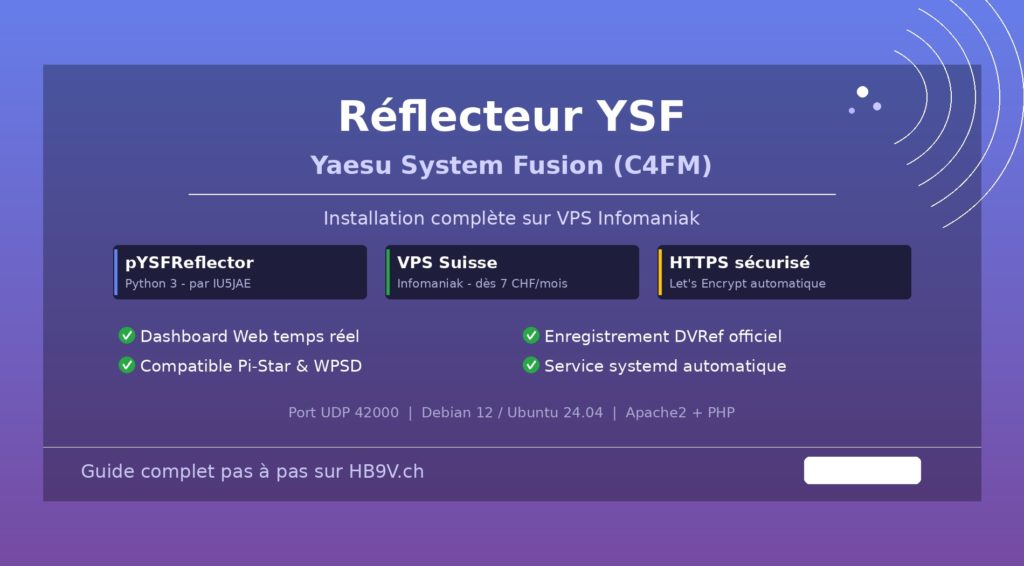
🛰️ Complete installation of a YSFReflector on an Infomaniak VPS: this guide will help you install and configure your own System Fusion (C4FM) reflector hosted in Switzerland, with a web dashboard, HTTPS and official registration on DVRef. Compatible with Debian 11/12 and Ubuntu 22.04/24.04.
📡 What is a YSF reflector?
A YSF reflector (Yaesu System Fusion) is a server that connects several amateur radio stations using Yaesu's C4FM digital mode over the Internet. It acts as a central meeting point where all connected users can talk together, creating worldwide “rooms” for conversation.
🎯 How it works: When a radio amateur transmits on a radio connected to the reflector, the signal is instantly passed on to all the other connected users, allowing group QSOs on a worldwide scale.
Why pYSFReflector?
This tutorial uses pYSFReflector, developed by IU5JAE. It is a modern Python version that replaces G4KLX's older C++ version.
🐍 Modern Python
No need to compile C++, direct and simple installation
✅ Compatible
Works with Pi-Star, WPSD and all YSF radios
🔄 Maintained
Regular updates and active bug fixing
💪 Stable
Better connection handling, fewer crashes
🇨🇭 Why Infomaniak?
Infomaniak is a leading Swiss hosting provider, particularly well suited to hosting an amateur radio reflector:
Optimal data protection
Certified eco-friendly data centres
NVMe SSD infrastructure
From CHF 7/month
📋 Prerequisites
Minimum VPS configuration
- 1 vCPU
- 1 GB RAM
- 10 GB SSD
- System: Debian 12 or Ubuntu 24.04 LTS (recommended)
Information to have ready
📝 Before you start, have to hand:
- Reflector name: 16 characters maximum (e.g. "HB9 SUISSE")
- Description: 14 characters maximum (e.g. "Reflecteur CH")
- Your e-mail: for DVRef and Let's Encrypt registration
- Your callsign: a valid amateur radio callsign
- Domain name: optional but recommended for HTTPS
🚀 Step-by-step installation
1. Preparing the server
Connect to your Infomaniak VPS over SSH:
ssh utilisateur@votre-ip-vps
Update the system:
sudo apt update
sudo apt upgrade -y
Install the basic tools:
sudo apt install -y git curl wget nano ufw
Create the working directory:
cd ~
mkdir ysf-install
cd ysf-install
2. Installing Python and dependencies
Install Python 3:
sudo apt install -y python3 python3-pip python3-venv
Check the installation:
python3 --version
💡 Expected version: Python 3.9 or later (usually 3.11 on Debian 12 / Ubuntu 24.04)
Installing the Python libraries
⚠️ Common problem: "externally-managed-environment"
If you get this error with pip, use one of the 3 methods below.
Method 1: Using the system packages (RECOMMENDED)
sudo apt install -y python3-aprslib python3-tinydb
For the "threaded" library, which is not in the repositories:
sudo pip3 install threaded --break-system-packages
🚨 CRITICAL WARNING: The dashes
Make sure you use TWO HYPHENS -- (short dashes) and NOT a single long dash (en dash). If you copy and paste from a PDF or Word document, check this! A long dash will make the command fail.
Method 2: Full installation with pip
If python3-tinydb is not available:
sudo pip3 install aprslib --break-system-packages
sudo pip3 install tinydb --break-system-packages
sudo pip3 install threaded --break-system-packages
Method 3: Permanent pip configuration
sudo mkdir -p /root/.config/pip
sudo nano /root/.config/pip/pip.conf
Add these lines to the file:
[global]
break-system-packages = true
Save with Ctrl+O, Enter, then exit with Ctrl+X.
You can now install without the flag:
sudo pip3 install aprslib tinydb threaded
Check that the libraries are installed:
pip3 list | grep -E "aprslib|tinydb|threaded"
3. Installing pYSFReflector
Download pYSFReflector from GitHub:
cd ~/ysf-install
git clone https://github.com/iu5jae/pYSFReflector.git
Create the necessary directories:
sudo mkdir -p /opt/ysfreflector
sudo mkdir -p /var/log/ysfreflector
sudo mkdir -p /usr/local/etc
Copy the files:
cd pYSFReflector
sudo cp YSFReflector /opt/ysfreflector/
sudo cp YSFReflector.ini /opt/ysfreflector/
sudo chmod +x /opt/ysfreflector/YSFReflector
Create the deny.db file:
sudo touch /usr/local/etc/deny.db
sudo chmod 644 /usr/local/etc/deny.db
⚠️ Critical file: Without this deny.db file, pYSFReflector throws an error at startup. This file contains the list of blocked users (empty to begin with).
Set the log permissions:
sudo chown -R $USER:$USER /var/log/ysfreflector
4. Configuring YSFReflector
Edit the main configuration file:
sudo nano /opt/ysfreflector/YSFReflector.ini
💡 nano shortcuts:
- Ctrl+O then Enter: Save
- Ctrl+X: Exit
- Ctrl+W: Search
Edit the [General] section:
[General]
Id=00000
Name=HB9 SUISSE
Description=Reflecteur CH
💡 Explanations:
Id=00000: Leave it at zero for now. You will change it after registering on DVRefName: 16 characters maximum (including spaces)Description: 14 characters maximum
Check the [Network] section:
[Network]
Port=42000
⚠️ Standard YSF port: Port 42000/UDP is the standard port for YSF. Do not change it unless absolutely necessary, as this could cause compatibility problems.
Check the [Log] section:
[Log]
FilePath=/var/log/ysfreflector
FileRoot=YSFReflector
FileLevel=1
DisplayLevel=1
FileRotate=1
Save the file: Ctrl+O, Enter, Ctrl+X
5. Installing the web dashboard
For Ubuntu 24.04 / Debian 12:
sudo apt install -y apache2 php libapache2-mod-php php-mbstring php-xml php-curl
For Ubuntu 22.04 / Debian 11:
sudo apt install -y apache2 php libapache2-mod-php php8.1-mbstring php8.1-xml php8.1-curl
Enable and start Apache:
sudo systemctl enable apache2
sudo systemctl start apache2
Download the dashboard:
cd ~/ysf-install
git clone https://github.com/dg9vh/YSFReflector-Dashboard.git
Install the dashboard:
sudo rm -rf /var/www/html/*
sudo cp -R YSFReflector-Dashboard/* /var/www/html/
sudo rm -f /var/www/html/index.html
Create the configuration file:
sudo mkdir -p /var/www/html/config
sudo nano /var/www/html/config/config.php
Copy this content (adapt the URL to your setup):
<?php
// Paths (WITHOUT trailing slash)
define("LOGPATH", "/var/log/ysfreflector");
define("LOGPREFIX", "YSFReflector");
define("INIPATH", "/opt/ysfreflector");
define("INIFILENAME", "YSFReflector.ini");
define("REFL_PATH", "/opt/ysfreflector");

// Compatibility with older versions
define("YSFREFLECTORLOGPATH", "/var/log/ysfreflector");
define("YSFREFLECTORLOGPREFIX", "YSFReflector");
define("YSFREFLECTORINIPATH", "/opt/ysfreflector");
define("YSFREFLECTORINIFILENAME", "YSFReflector.ini");
define("YSFREFLECTORPATH", "/opt/ysfreflector");

// Display settings
define("REFRESHAFTER", "10");
define("LOGO", "");
define("URL", "http://votre-domaine.com");
define("LOCALE", "fr_CH.utf8");
define("TIMEZONE", "Europe/Zurich");

// Features
define("SHOWSYSINFO", "1");
define("SHOWNETINFO", "1");
define("ENABLEXTDLOOKUP", "1");
define("QRZAPIKEY", "");
define("SHOWLH", "1");
define("LHLINES", "20");
define("DMRIDDATPATH", ".");
define("ENABLEYSFGATEWAY", "0");
?>
Save and set the permissions:
sudo chown -R www-data:www-data /var/www/html/
sudo chmod -R 755 /var/www/html/
sudo chmod 644 /var/www/html/config/config.php
sudo systemctl restart apache2
6. Configuring the firewall (CRITICAL)
🚨 CRUCIAL: TWO firewalls to configure
There are TWO firewalls that you must configure:
- UFW firewall: on your Linux server
- Infomaniak firewall: in the web control panel
If you only configure one of them, the dashboard will NOT be reachable from the Internet!
Part 1: UFW firewall (on the server)
🚨 WARNING: Allow SSH FIRST!
Allow SSH BEFORE enabling UFW, otherwise you will be locked out and unable to access your server!
sudo ufw allow 22/tcp
sudo ufw allow 42000/udp
sudo ufw allow 80/tcp
sudo ufw allow 443/tcp
sudo ufw enable
sudo ufw status verbose
💡 Ports explained:
- 22/tcp: SSH - Remote access to the server (CRITICAL)
- 42000/udp: YSFReflector - System Fusion radio traffic
- 80/tcp: HTTP - Web dashboard
- 443/tcp: HTTPS - Secure dashboard
Part 2: Infomaniak firewall (web panel)
- Log in to manager.infomaniak.com
- Go to Cloud & Servers → Public Cloud
- Select your VPS
- Click Firewall in the side menu
- Add these 4 rules:
- Port 22/TCP - Protocol TCP - Source: Anywhere - Action: Allow
- Port 42000/UDP - Protocol UDP - Source: Anywhere - Action: Allow
- Port 80/TCP - Protocol TCP - Source: Anywhere - Action: Allow
- Port 443/TCP - Protocol TCP - Source: Anywhere - Action: Allow
- Save the changes
7. Configuring the systemd service
Create the service file:
sudo nano /etc/systemd/system/ysfreflector.service
Copy this content:
[Unit]
Description=YSFReflector Service
After=network.target

[Service]
Type=simple
User=root
WorkingDirectory=/opt/ysfreflector
ExecStart=/usr/bin/python3 /opt/ysfreflector/YSFReflector /opt/ysfreflector/YSFReflector.ini
Restart=on-failure
RestartSec=10

[Install]
WantedBy=multi-user.target
Save, then enable and start the service:
sudo systemctl daemon-reload
sudo systemctl enable ysfreflector.service
sudo systemctl start ysfreflector.service
sudo systemctl status ysfreflector.service
✅ Service active: You should see active (running) in green. If so, your reflector is working!
Useful commands
sudo systemctl status ysfreflector.service: Show the statussudo systemctl restart ysfreflector.service: Restartsudo journalctl -u ysfreflector.service -f: Live logs
Testing the dashboard
Open your browser and go to: http://votre-ip-vps/
You should see the dashboard with your reflector's information!
📝 Registering on DVRef
⚠️ Important: Registration is now done ONLY on DVRef.com. The old YSFReflector.de registry has not been maintained since June 2024.
Registration procedure
- Go to https://dvref.com/ysf/new
- Fill in the form:
- Name: Name of your reflector (e.g. "HB9 SUISSE")
- Description: Short description
- Country: Country code (CH, FR, BE, etc.)
- FQDN/IP: Your IP or domain name
- Port: 42000
- Email: Your e-mail address
- Callsign: Your amateur radio callsign
- Submit the form
- You will receive a confirmation e-mail
- Click the link in the e-mail to activate
- Note your 5-digit ID (e.g. 12345)
Updating the configuration
Edit the configuration file:
sudo nano /opt/ysfreflector/YSFReflector.ini
Change the Id line:
[General]
Id=12345
Name=HB9 SUISSE
Description=Reflecteur CH
Replace 12345 with your actual ID. Save and restart:
sudo systemctl restart ysfreflector.service
⏱️ Propagation delay: Your reflector will appear in the Pi-Star and WPSD lists within 24 to 48 hours. This is normal, DNS propagation takes time.
🔒 HTTPS configuration with Let's Encrypt
⚠️ Domain name required: For HTTPS, you need a domain name pointing to your VPS. A plain IP address is not enough.
Installing Certbot
sudo apt update
sudo apt install -y certbot python3-certbot-apache
Obtaining the SSL certificate
sudo certbot --apache -d ysf.votredomaine.com
Replace ysf.votredomaine.com with your real domain name. Answer the questions:
- Email: Enter your e-mail
- Terms of Service: Type
Y - Share email:
YorN(optional) - Redirect HTTP to HTTPS: Choose
2to redirect automatically
Checking
sudo certbot certificates
Updating the dashboard
sudo nano /var/www/html/config/config.php
Change the URL line:
define("URL", "https://ysf.votredomaine.com");Save and restart Apache:
sudo systemctl restart apache2
Test: https://ysf.votredomaine.com - You should see a green padlock in the address bar!
🔒 HTTPS enabled: Your dashboard is now secure. The certificate will renew itself every 60 days through Certbot's automatic cron job.
🎨 Customising the dashboard
Adding a logo
Upload your logo (PNG, 200x200px recommended):
scp logo.png utilisateur@votre-ip:/home/utilisateur/
ssh utilisateur@votre-ip
sudo mv ~/logo.png /var/www/html/logo.png
sudo chown www-data:www-data /var/www/html/logo.png
Enable it in the configuration:
sudo nano /var/www/html/config/config.php
define("LOGO", "logo.png");Changing the name and description
sudo nano /opt/ysfreflector/YSFReflector.ini
[General]
Id=12345
Name=MY YSF REFLECTOR
Description=My description
Restart the reflector:
sudo systemctl restart ysfreflector.service
🔧 Maintenance
Recommended monthly maintenance
sudo apt update
sudo apt upgrade -y
sudo apt autoremove -y
Checking disk space
df -h
Cleaning up old logs
sudo find /var/log/ysfreflector/ -name "*.log" -mtime +30 -delete
Backing up the configuration
mkdir -p ~/backups
sudo cp /opt/ysfreflector/YSFReflector.ini ~/backups/YSFReflector.ini.$(date +%Y%m%d)
sudo cp /var/www/html/config/config.php ~/backups/config.php.$(date +%Y%m%d)
🔧 Troubleshooting
Problem 1: Dashboard shows a blank page
sudo tail -50 /var/log/apache2/error.log
sudo systemctl status ysfreflector.service
ls -la /var/log/ysfreflector/
Problem 2: Service won't start
sudo journalctl -u ysfreflector.service -n 100
If you get the error "deny.db not found":
sudo touch /usr/local/etc/deny.db
sudo chmod 644 /usr/local/etc/deny.db
sudo systemctl restart ysfreflector.service
Problem 3: Dashboard not reachable
Check both firewalls:
sudo ufw status | grep 80
sudo systemctl status apache2
Also check in the Infomaniak panel that ports 80 and 443 are open.
Problem 4: Not visible in Pi-Star
Checklist:
- ✓ Registered on DVRef.com?
- ✓ Confirmation e-mail activated?
- ✓ ID updated in YSFReflector.ini?
- ✓ Port 42000/UDP open (UFW + Infomaniak)?
- ✓ ysfreflector service running?
- ✓ Waited at least 24-48 h?
🎯 Conclusion
🎉 Congratulations!
Your YSF reflector is now up and running on your Infomaniak VPS. You have a professional server with a web dashboard, secure HTTPS and official registration on DVRef.
pYSFReflector installed and configured
Interface available 24/7
HTTPS and two-layer firewall
Visible in Pi-Star/WPSD
Useful resources
- DVRef.com: official YSF registry
- pYSFReflector on GitHub
- Dashboard on GitHub
- Infomaniak VPS
- Let's Encrypt
📚 Also on HB9V
- 📡 Installing a Multiprotocol XLX Reflector: complete guide to installing an XLX reflector compatible with D-STAR, DMR and YSF
- 📻 WPSD: The Ultimate Amateur Radio Hotspot: set up your hotspot to access YSF, DMR and D-STAR reflectors
- 🖨️ 3D-printed FTM-510 & FTM-500 bracket: free STL files for your Yaesu C4FM radio
- 📊 Amateur Radio DMR Hotspot: Complete Guide: Pi-Star, WPSD, Brandmeister and Swiss talkgroups
🤝 Our partners

Phonicom.ch: amateur radio specialist in Switzerland
At Phonicom you will find Yaesu C4FM radios, WPSD hotspots and all the accessories for the Yaesu System Fusion network. Personal advice and delivery in Switzerland.
Visit phonicom.ch →