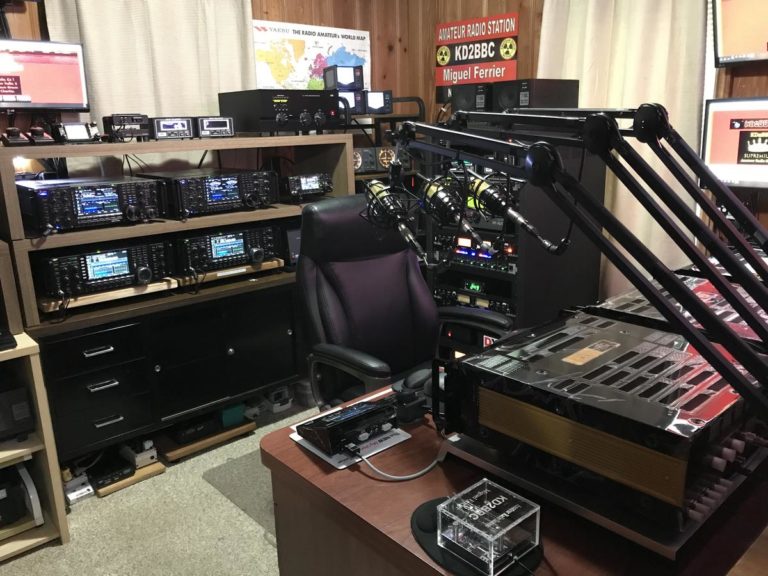
Installing a Multi-mode XLX Reflector
YSF, DMR, D-Star, C4FM on Ubuntu 22.04 / 24.04 or Debian 12
Complete, updated guide - October 2025
Contents
- 1. Introduction
- 2. Prerequisites
- 3. Preparing the system
- 4. Installing the dependencies
- 5. Downloading and configuring XLX
- 6. Compiling the reflector
- 7. Configuring the system service
- 8. Installing the web dashboard
- 9. Configuring the Apache web server
- 10. Configuring the firewall
- 11. Starting and checking
- 12. SSL configuration
- 13. Registering in the public lists
- 14. Troubleshooting
- 15. Maintenance
- 16. Connecting to the reflector
- 17. Conclusion
1. Introduction
What is XLX?
XLX is a multiprotocol, multi-mode reflector for amateur radio digital modes. It lets you set up a server that simultaneously supports:
- D-Star (with the DPlus/REF, DCS and DExtra/XRF protocols)
- DMR (Digital Mobile Radio)
- YSF/C4FM (Yaesu System Fusion)
Advantages of XLX
- Native multi-mode: DMR and YSF users can communicate without transcoding hardware
- Up to 26 modules (rooms A to Z)
- Real-time dashboard
- Interlinking between reflectors possible
- Open source and Pi-Star compatible
To allow communication between D-Star and the other modes, you will need hardware AMBE chips (around €90 each, at least 2 required). DMR ↔ YSF has worked natively since 2020.
2. Prerequisites
Server
- VPS or dedicated server running Ubuntu 22.04/24.04 or Debian 12
- CPU: 1-2 vCPU minimum
- RAM: 1-2 GB minimum
- Storage: 20 GB minimum
- Recommended providers: Linode, DigitalOcean, OVH (€5/month)
Network
- Fixed public IP address (IPv4 required)
- Fully qualified domain name (FQDN): for example
xlx.votre-domaine.fr - Network ports reachable
XLX number
Choose an unused 3-digit number (000-999). Check at: https://xlx.n5amd.com/index.php?show=reflectors
Use ONLY digits, no letters. Your reflector will be called XLX###.
3. Preparing the system
Connecting to the server
ssh root@votre-serveur.com
Updating the system
sudo apt update -y
sudo apt upgrade -y
sudo apt dist-upgrade -y
Creating an administrator user
apt install sudo -y
adduser votre-callsign
usermod -aG sudo votre-callsign
su - votre-callsign
cd ~
From now on, use this user for all commands.
4. Installing the dependencies
sudo apt install -y \
git git-core apache2 php libapache2-mod-php \
php-cli php-xml php-mbstring php-curl php-mysql \
build-essential g++ make ufw certbot python3-certbot-apache
Checking the versions
php -v # PHP 8.x
apache2 -v # Apache 2.4.x
gcc -v # GCC 11.x or later
5. Downloading and configuring XLX
Downloading the source code
cd ~
git clone https://github.com/LX3JL/xlxd.git
cd xlxd/src
nano main.h
Settings to change in main.h
1. Enabling YSF auto-link
Change:
#define YSF_AUTOLINK_ENABLE 0
To:
#define YSF_AUTOLINK_ENABLE 1
2. Server IP address
Find your IP:
curl ifconfig.me
Then change:
#define IP_ADDRESS "123.45.67.89" // Your public IP
3. Number of modules (optional)
#define NB_OF_MODULES 26 // To enable A-Z
Save: Ctrl + X, then Y, then Enter
6. Compiling the reflector
make clean
make
sudo make install
sudo chmod +x /xlxd/xlxd
Downloading the DMR ID database
sudo wget -O /xlxd/dmrid.dat http://xlxapi.rlx.lu/api/exportdmr.php
7. Configuring the system service
sudo cp ~/xlxd/scripts/xlxd /etc/init.d/xlxd
sudo nano /etc/init.d/xlxd
Change the ARGUMENTS line:
ARGUMENTS="XLX### votre.ip.publique 127.0.0.1"
Example:
ARGUMENTS="XLX123 203.0.113.45 127.0.0.1"
Enabling:
sudo update-rc.d xlxd defaults
8. Installing the web dashboard
sudo cp -r ~/xlxd/dashboard /var/www/xlxd
sudo nano /var/www/xlxd/pgs/config.inc.php
Essential settings
1. Contact information
$PageOptions['ContactEmail'] = 'votre-email@domaine.com';
$PageOptions['MetaDescription'] = 'XLX### - Multi-mode Reflector';
$PageOptions['MetaAuthor'] = 'VOTRE-CALLSIGN';
2. Calling Home configuration (IMPORTANT)
$CallingHome['Active'] = true;
$CallingHome['MyDashBoardURL'] = 'xlx.votre-domaine.fr';
$CallingHome['Country'] = 'FR';
$CallingHome['Comment'] = 'French Multi-mode Reflector';
$CallingHome['HashFile'] = '/xlxd/callinghome.php';
$CallingHome['Active'] MUST be set to true to appear in the public lists.Setting the permissions
sudo chown -R www-data:www-data /var/www/xlxd/
sudo chown -R www-data:www-data /xlxd/
9. Configuring the Apache web server
sudo nano /etc/apache2/sites-available/xlx.votre-domaine.fr.conf
Contents:
<VirtualHost *:80>
ServerName xlx.votre-domaine.fr
ServerAdmin votre-email@domaine.com
DocumentRoot /var/www/xlxd
<Directory /var/www/xlxd>
Options -Indexes +FollowSymLinks
AllowOverride All
Require all granted
</Directory>
</VirtualHost>
Enabling:
sudo a2ensite xlx.votre-domaine.fr.conf
sudo systemctl reload apache2
10. Configuring the firewall
TCP ports
sudo ufw allow 80/tcp # HTTP
sudo ufw allow 443/tcp # HTTPS
sudo ufw allow 22/tcp # SSH
sudo ufw allow 10001/tcp # XLX Core
sudo ufw allow 10002/tcp # Interlink
sudo ufw allow 42000/tcp # YSF
sudo ufw allow 30001/tcp # DExtra
sudo ufw allow 20001/tcp # DPlus
sudo ufw allow 30051/tcp # DCS
UDP ports
sudo ufw allow 8880/udp # DMR+
sudo ufw allow 10001/udp # XLX
sudo ufw allow 42000/udp # YSF
sudo ufw allow 30001/udp # DExtra
sudo ufw allow 20001/udp # DPlus
sudo ufw allow 30051/udp # DCS
Enabling:
sudo ufw enable
sudo ufw status verbose
For cloud VPSs, also open these ports in the provider's firewall.
11. Starting and checking
sudo service xlxd start
sudo systemctl status xlxd
sudo chown -R www-data:www-data /var/log/xlxd.xml
sudo systemctl restart apache2
Testing the dashboard
http://xlx.votre-domaine.fr
You should see your XLX### reflector with version v2.5.3.
12. SSL configuration (recommended)
sudo apt install certbot python3-certbot-apache -y
sudo certbot --apache -d xlx.votre-domaine.fr
sudo certbot renew --dry-run
Now go to https://xlx.votre-domaine.fr
13. Registering in the public lists
With $CallingHome['Active'] = true, your reflector registers automatically.
Delay: 2 to 48 hours to appear in the public lists.
14. Troubleshooting
The service won't start
sudo journalctl -u xlxd -n 50
cat /etc/init.d/xlxd
ls -la /xlxd/xlxd
sudo chmod +x /xlxd/xlxd
The dashboard is empty
sudo systemctl status apache2
sudo chown -R www-data:www-data /var/www/xlxd/
sudo tail -f /var/log/apache2/xlx-error.log
Not in the lists
- Check
$CallingHome['Active'] = true - Check the FQDN
- Wait 24-48 hours
- Check the logs
15. Maintenance
Updating XLX
sudo systemctl stop xlxd
cd ~/xlxd && git pull
cd src && make clean && make
sudo make install
sudo systemctl start xlxd
Updating the DMR database
sudo wget -O /xlxd/dmrid.dat http://xlxapi.rlx.lu/api/exportdmr.php
sudo systemctl restart xlxd
16. Connecting to the reflector
From Pi-Star (D-Star)
- Configuration → Expert → MMDVMHost
- D-Star Network section:
- Protocol: XLX
- Hostname:
xlx.votre-domaine.fr - Port:
30001 - Module:
B
DTMF codes
*###A→ Module A*###B→ Module B*U→ Disconnect
17. Conclusion
Congratulations! Your multi-mode XLX reflector is up and running.
Next steps
- Test with your hotspot
- Set up dedicated modules
- Add AMBE transcoding if needed
- Promote your reflector
Good practice
- Document your configuration
- Update regularly
- Monitor the logs
- Keep it secure (SSL, updates)
- Share your knowledge
73 and enjoy operating on your new XLX reflector!